Skip to guide
PDF Guide
DE

Interactive user guide

Aura Loop Dual Setup Guide

Auracast TV earbuds setup

Connect by Optical or AUX, then listen through the included Loop earbuds. Or pair the earbuds directly with a Bluetooth TV.

Avantree Aura Loop Dual: two pairs of earbuds and TV transmitterAuracast TV audioPhone Bluetooth too

Choose a setup method

The included Loop earbuds connect to the transmitter automatically. No Bluetooth pairing is required.

Set up with the transmitter

Power the transmitter

Use the included USB-C cable.

Watch: connect USB-C power and turn on the transmitter.
  1. Place the transmitter near the TV.
  2. Connect it to 5 V USB power.
  3. Slide the power switch to ON.
✓
Expected: the transmitter powers on.
No light? Reseat both cable ends and try a known-working USB power source.

Connect your TV

Check the labels beside the ports, then choose the first match below.

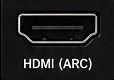
TV HDMI ARC portOnly HDMI ARC / eARC?HAX06 HDMI ARC-to-Optical adapter required.
Sold separately.
View HAX06 →

Connect with Optical

Watch: connect the Optical cable from TV output to transmitter input.
  1. Remove the clear protective caps from both square ends.
  2. Plug one end into the TV's OPTICAL / DIGITAL AUDIO OUT.
  3. Plug the other end into the Aura Loop Dual transmitter's OPTICAL INPUT.
  4. Make sure both plugs are fully seated.
Soundbar on HDMI ARC? Unplug it temporarily while confirming setup.

Connect with AUX / 3.5 mm

Watch: connect the 3.5 mm cable from TV output to AUX input.
  1. Plug one end into the TV's HEADPHONES / AUDIO OUT.
  2. Plug the other end into the Aura Loop Dual transmitter's AUX INPUT.
  3. Push both round plugs in fully.

Set your TV sound

Use your TV remote.

Choose your cable in Step 2 to see the matching TV settings.

Turn on the earbuds and listen

Watch: turn on the earbuds and begin listening.
  1. Turn the earbuds on.
  2. Keep them near the transmitter until the LED is solid orange.
  3. Put them on and raise volume gradually.
✓
Success: solid orange LED + TV sound.
Not orange or no sound? Confirm the transmitter audio-input LED is solid white, then open Fix a problem below.
Setup Complete →

Fit the earbuds securely

Watch: fit the optional stability earfins.
  1. Try each supplied ear-tip size.
  2. Insert and gently rotate until secure; do not force it.
  3. Install the free stability earfins when extra support is needed.

No earfins in the box?Contact us for a free pair →

Choose an EQ mode

Switch EQ modes

While audio is playing, short-press the earbud power button. Each press switches to the next mode.

  • Balanced
  • Voice Clear 1
  • Voice Clear 2

Stop when you hear the mode you prefer.

Adjust more in the app

Use Avantree–Avantalk for more EQ options and custom sound adjustments.

See EQ steps in the FAQ →

Charge the earbuds

Watch: charge with the dock or a USB-C cable.

Keep charging contacts dryEarbud charging contacts

  1. Connect the earbuds to USB-C power (5 V, 1–2.4 A).
  2. Confirm the LED is solid red while charging.
  3. Charging is complete when the LED turns off, usually after about 2 hours. A full charge provides up to 12 hours of listening.

After USB-C charging: the earbuds power on automatically when unplugged.
Pair with a phone or computer

Watch: place the earbuds in Bluetooth pairing mode and connect by phone.
  1. Turn on the earbuds.
  2. Hold the pairing/play button for 3 seconds.
  3. When red and blue blink, select Avantree Loop in Bluetooth settings.

Stay connected to your phone while watching TV

Never miss a call
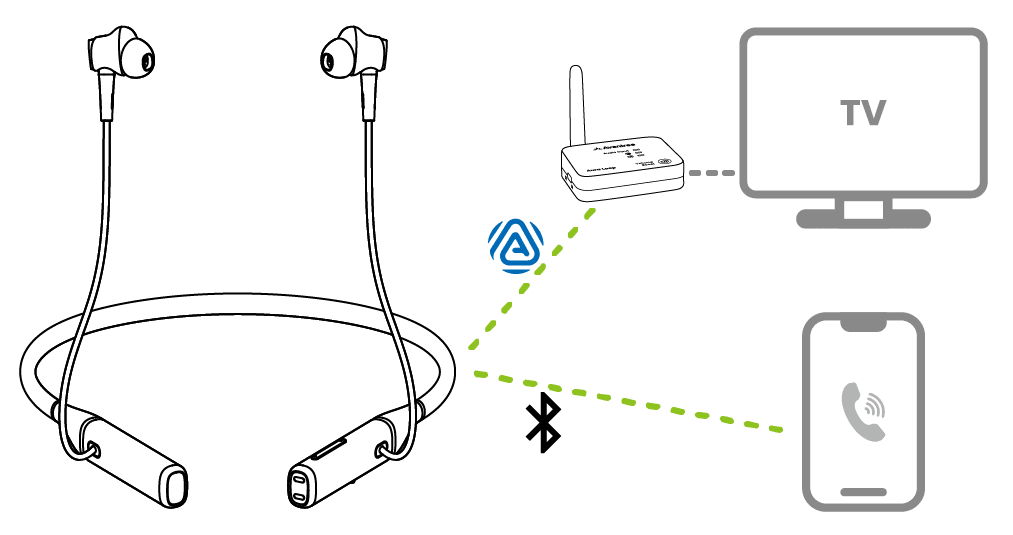
  • Incoming calls pause TV audio automatically.
  • TV sound resumes after the call ends.
Aura Loop Dual earbuds connected to the TV transmitter by Auracast and to a phone by Bluetooth

Add Auracast listeners

Additional compatible Avantree Auracast devices can join by powering on. Other brands may require their companion app.

Add more earbuds →

Name your broadcast or make it private

Use Avantree Updater on a Windows PC or Mac. Finish both firmware updates first.

Before you begin

  • Update the transmitter and earbuds.
  • Confirm the earbuds have joined the transmitter and TV sound is playing.
  • Connect the transmitter to the computer with the included gray USB data cable.
How to update both devices →

Rename or encrypt the broadcast

Watch: set a broadcast name and passcode in Avantree Updater.
  1. Open Avantree Updater → Advanced.
  2. Enter your preferred broadcast name.
  3. For Private Mode, set Encryption → Encrypted (User-defined) and enter a passcode.
  4. Enable Synchronize to supported Avantree Rx, then choose Apply settings.
Keep the earbuds connected before Apply. Only devices with the passcode can join an encrypted broadcast.
Earbuds did not reconnect?
  1. In Advanced, set Encryption → Public, then choose Apply settings.
  2. Wait for the earbuds to reconnect.
  3. Repeat the Private Mode steps above.

Fix common problems

Update the earbuds and transmitter

1. Update Earbuds

  1. Install Avantree-Avantalk.
  2. Pair the earbuds with your phone through Bluetooth.
  3. Open the app, tap Add Device, select Avantree Loop, then tap Connect.
  4. Follow the update prompt. If none appears, open the gear icon and tap Update Now.

Do not interrupt the update. Keep the earbuds near the phone until the update reaches 100%.

2 · TRANSMITTER

2. Update Transmitter

  1. Download the Firmware Update Tool on a Windows PC or Mac.

  2. Connect the transmitter to your computer with a USB data cable.

    Firmware update cable: Use the gray-tip cable that came with your device. Mac users can also use an Apple charging cable.

  3. Open the Firmware Update Tool.

    Follow the on-screen instructions.

    Keep transmitter connected until it says Complete.

After updating: unplug the transmitter.